Install on Linux
This page installs Detail on a Linux computer with an NVIDIA GPU. The commands are for Ubuntu 22.04 or newer. Other Linux systems work too, with their own commands for installing system software in steps 2 and 3.
Detail runs everything on your computer's NVIDIA GPU.
Your computer needs an NVIDIA GPU
Check before you start: open a terminal (see below) and run lspci | grep -i nvidia. A
line naming an NVIDIA device must print. If nothing prints, Detail cannot run on
your computer.
Check the hardware and disk space Detail needs, too. The installation needs at least 25 GB free in your home folder.
The steps at a glance
Each box is one step on this page. Click a box to go to that step. The tags say where the step happens.
- Install the NVIDIA driver Terminal Skip if nvidia-smi already shows your GPU.
- Install the tools Detail needs Terminal
- Install Python 3.12 Terminal
- Sign in to GitHub Terminal Browser
- Download Detail Terminal
- Create the environment and install Detail Terminal, same window
- Launch Detail Terminal, same window Detail window Then go on to Configure Detail.
Before you start: open a terminal
Every command on this page runs in a terminal. On Ubuntu, press Ctrl+Alt+T, or open
Terminal from the applications menu. The prompt looks like yourname@computer:~$.
About this step: running a command
To run a command from this page:
- Click the copy button at the right edge of the command's grey box.
- Click inside the terminal and press Ctrl+Shift+V to paste. (Ctrl+V does not paste in a Linux terminal.)
- Press Enter.
- Wait for the prompt, ending in
$, to come back before running the next command.
Some commands start with sudo, which runs them as administrator. The first sudo in a
while asks for your password. Nothing appears while you type it, not even dots. Type it
and press Enter.
1. Install the NVIDIA driver
In the terminal, first check whether a working driver is already installed:
nvidia-smi
- A table prints with your GPU's name and a
CUDA Versionon its top line: the driver works. Skip to step 2. nvidia-smiis not found, or prints an error: install the driver.
Ubuntu picks and installs the right driver for your GPU:
sudo ubuntu-drivers install
Restart the computer, open a terminal again, and check:
nvidia-smi
A table prints with your GPU's name. Its top line includes CUDA Version.
About this step
The driver is the software that lets Linux use the GPU. Detail's AI models use NVIDIA's CUDA software, which comes with it. An old driver supports only old versions of CUDA, and so only old versions of PyTorch, the library the models run on.
You can also install the driver from Software & Updates ▸ Additional Drivers: pick the newest entry marked proprietary, tested.
If this doesn't work
- The computer asks you to "Enroll MOK" or set a Secure Boot password during the install: choose a password and write it down. After the restart a blue screen appears: choose Enroll MOK, then Continue, and type that password. Without this, Secure Boot stops the driver from loading.
ubuntu-driversis not found: runsudo apt install -y ubuntu-drivers-commonfirst.nvidia-smistill fails after the restart: ask your IT support. Some computers need the driver installed a different way.
2. Install the tools Detail needs
In the terminal, bring the list of available software up to date:
sudo apt update
Install Git, the GitHub CLI, and the display libraries Detail's window needs:
sudo apt install -y git gh curl libxcb-cursor0 libxcb-icccm4 libxcb-image0 libxcb-keysyms1 libxcb-render-util0 libxcb-shape0 libxcb-xkb1 libxcb-util1 libxkbcommon-x11-0
Install uv, the tool that installs Python and Detail:
curl -LsSf https://astral.sh/uv/install.sh | sh
Close the terminal and open it again, so it finds uv. Then check each tool:
git --version
gh --version
uv --version
Each prints a version number.
About this step: what each tool is
- Git downloads Detail and later fetches its updates.
- The GitHub CLI (
gh) signs your computer in to your GitHub account, so Git can download the Detail repository. - The
libxcbandlibxkbcommonlibraries let Detail's window open. Most desktop installs have them already, andaptskips any that are. - uv installs Python, Detail, and the libraries Detail uses, into a separate folder (its environment) so they cannot clash with the system's own software.
3. Install Python 3.12
Detail needs Python version 3.12 exactly. Linux comes with its own Python, which may be a different version. Leave it alone: the system's own tools use it. uv installs a separate Python 3.12 next to it.
In the terminal:
uv python install 3.12
Check:
uv python find 3.12
It prints the path of a Python 3.12 program.
About this step: why 3.12, and having several versions
Detail is built and tested on Python 3.12. Some libraries it depends on, PyTorch and SAM 3 among them, are slow to support each new Python, so a newer version can fail partway through the install.
The Python uv installs lives in uv's own folder. It does not replace the system's
python3, and nothing else uses it unless asked. If uv python find 3.12 finds a
Python 3.12 that was already installed, that is fine too.
If this doesn't work
- You use Anaconda or Miniconda, and the prompt starts with
(base)or another name in brackets: runconda deactivatebefore step 6, so the environment is made from Python 3.12 rather than from conda's Python.
4. Sign in to GitHub from your computer
In the terminal:
gh auth login --hostname github.com --git-protocol https --web
- If it asks Authenticate Git with your GitHub credentials?, press Enter for yes.
- It prints a one-time code, such as
1A2B-3C4D, and a web address. Press Enter to open your browser. - Sign in to GitHub if asked, type the code, and click Authorize.
Check: the terminal prints Logged in as followed by your GitHub username.
About this step
This links Git on your computer to your GitHub account, so it can download the Detail repository. You do it once per computer.
5. Download Detail
In the terminal, go to your home folder:
cd ~
Download Detail into a new folder there, named detail:
gh repo clone detail-embedding/detail detail
Go into it:
cd detail
Check: the prompt now ends in ~/detail$.
About this step
Your home folder is /home/yourname, so Detail ends up in /home/yourname/detail.
If this doesn't work
- "Could not resolve to a Repository": the GitHub account you signed in with cannot open the Detail repository. Sign in again with the account that can.
- "destination path 'detail' already exists": Detail was downloaded before. Run
cd detailand go on to step 6.
6. Create the environment and install Detail
In the same terminal window, still inside the detail folder (the prompt ends in
~/detail$), create the environment, using the Python 3.12 from step 3:
uv venv --seed --python 3.12
Switch it on:
source .venv/bin/activate
Check: the prompt now starts with (detail).
Install Detail and everything it needs into the environment:
uv pip install -e ".[yolo,torch,gui,analysis,sam3]"
This downloads several gigabytes and can take ten minutes or more. Wait for the prompt.
Check:
detail --help
A list of Detail commands prints.
About this step
The environment is the .venv folder inside detail. Everything Detail installs goes
there and nowhere else, so removing that folder removes it all.
You switch the environment on (activate it) every time you open a new terminal to use
Detail. While it is on, the prompt starts with (detail).
The words in brackets are optional parts of Detail to include: yolo and sam3 for
detection models, torch for the AI libraries, gui for the desktop app, and analysis
for clustering.
If this doesn't work
detailis not found: the environment is not on. Runsource .venv/bin/activatefrom inside thedetailfolder.- The install stops with an error: run the same install command again. A dropped download is the usual cause, and uv keeps the files it already downloaded.
7. Launch Detail
In the same terminal window, with the environment on (the prompt starts with
(detail)):
detail-gui
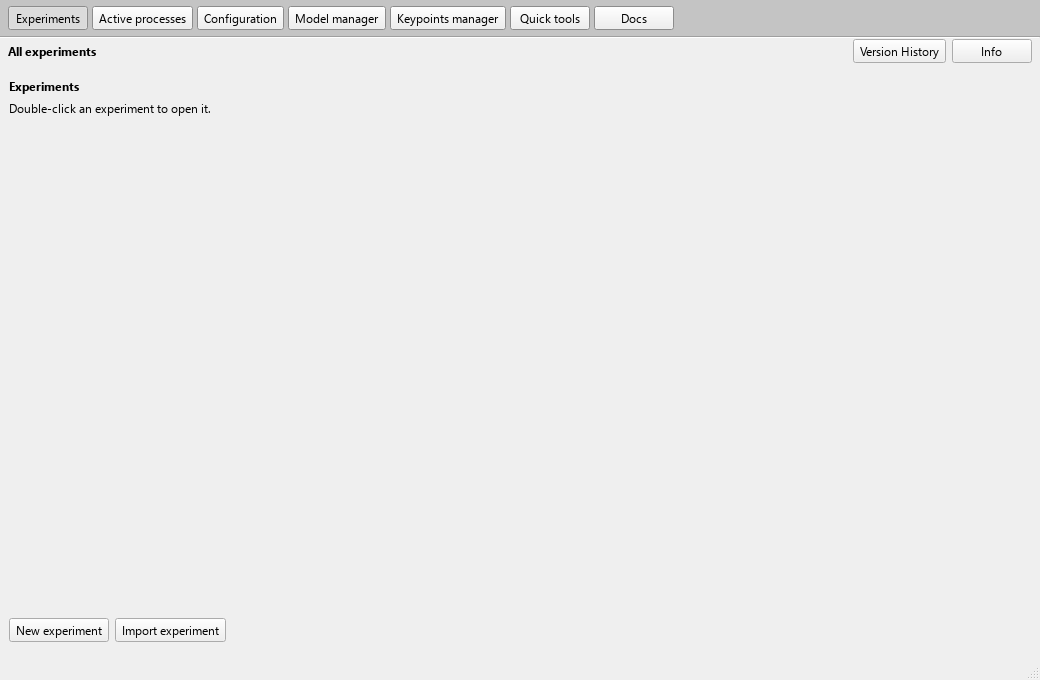
The Detail window opens on Experiments, which is empty for now:
Leave it open and go on to Configure Detail.
About this step
The terminal stays busy while Detail is open, and closing it closes Detail. Open a second terminal for any other commands.
Launch it again later
Open a terminal, then run these three commands:
cd ~/detail
source .venv/bin/activate
detail-gui
Update Detail
Close Detail first. Then, in a terminal, go to the Detail folder and switch on its environment (the first two commands under Launch it again later). Download the latest version:
git pull
If it printed a list of changed files, reinstall so any new libraries arrive:
uv pip install -e ".[yolo,torch,gui,analysis,sam3]"
Then launch Detail again.